
How to Set Up a Passkey in Microsoft Authenticator
You're at your desk, coffee in hand, and Outlook wants you to prove you're you. So you wait for the text. You check the signal bar. You tap "resend." The code lands just as the screen times out, and you get to do it all again.
Microsoft is ending that ritual. Starting February 1, 2027, Microsoft stops sending sign-in codes by text message and phone call for Microsoft 365 work accounts. The replacement is a passkey, and this guide walks you through how to set up a passkey in Microsoft Authenticator, start to finish, with screenshots.
Here's the short version: about ten minutes, once, on the phone you already carry. After that, signing in is a glance or a fingertip.
What is a passkey in Microsoft Authenticator?
A passkey is a sign-in credential stored on your phone that you unlock with your face, your fingerprint, or your phone's PIN. You skip the password and the six-digit code entirely.
Think of a text-message code as a house key you shout across the parking lot every time you want in. It works. It also works for anyone close enough to hear it, including the person who talked your phone carrier into moving your number to their SIM card.
A passkey is a key that lives in your pocket and only fits your front door. Microsoft calls passkeys phishing-resistant, and that's the practical difference: a passkey only works on the real Microsoft sign-in page, so a convincing fake site gets nothing. (The engineering underneath is called FIDO2, if you like knowing how the lock works.)
Why this matters for you specifically
If you already sign in by approving a notification in Authenticator, you're in good shape. A passkey is still worth adding (it's faster, and it can't be phished), but nothing breaks for you in February.
If text messages are your only way to verify, this is your heads-up. On February 1, 2027, the next time you sign in, Microsoft shows you a blocking prompt: register a passkey before you go any further. You won't be locked out. You'll just be setting this up on Microsoft's schedule instead of yours, possibly at 7:55 a.m. before a client call. (Ask anyone who's done security setup in a hurry. It's never the morning you'd pick.)
Self-service password reset by text is going away too. If you reset your own password with a texted code today, that path retires on the same date.
Before you start
Five minutes of checking saves most of the trouble people run into.
| What you need | iPhone | Android |
|---|---|---|
| Phone software | iOS 17 or later | Android 14 or later (Android 15 recommended) |
| Microsoft Authenticator | Free from the App Store, updated | Free from Google Play, updated |
| Screen lock | Face ID, Touch ID, or passcode on | Fingerprint, face unlock, or PIN on |
| Bluetooth | On, if you'll use a computer | On, if you'll use a computer |
| Internet | Wi-Fi or cellular | Wi-Fi or cellular |
You'll also need your work email and the way you verify today (your password plus a text code or an Authenticator approval). You prove it's you one more time, then the passkey takes over.
Not sure which software version you have? On iPhone, go to Settings > General > About. On Android, go to Settings > About phone.
How to set up a passkey in Microsoft Authenticator on your phone (recommended)
This is the easiest path, and the one we recommend. Everything happens inside the Authenticator app.
- Install or update Microsoft Authenticator from the App Store or Google Play.
- Find your work account in Authenticator.
- New to Authenticator: tap Add work or school account and sign in with your work email.
- Authenticator installed, but your work account isn't there: tap +, choose Work or school account, then Sign in.
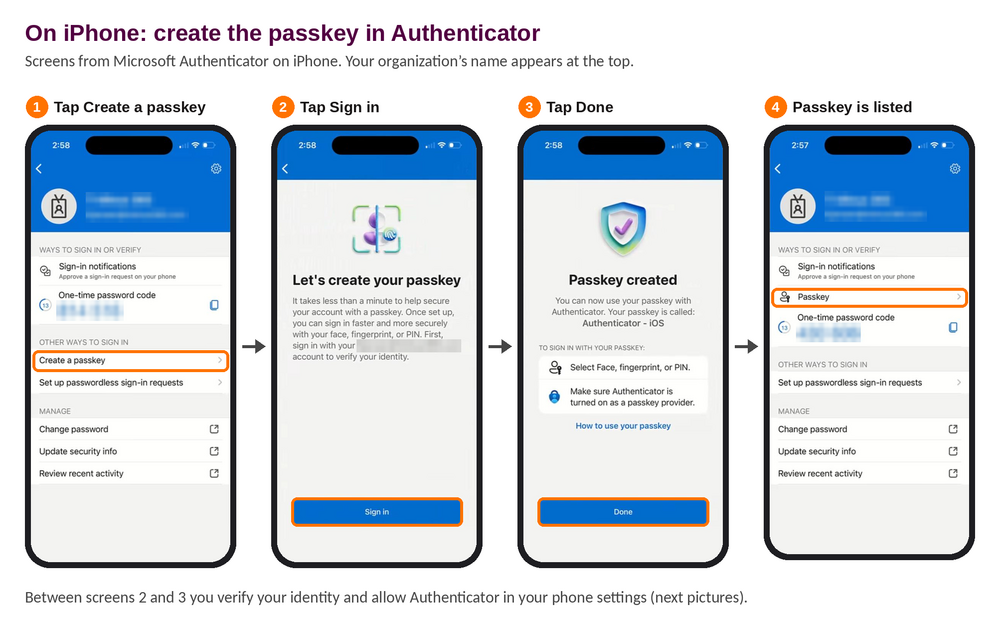
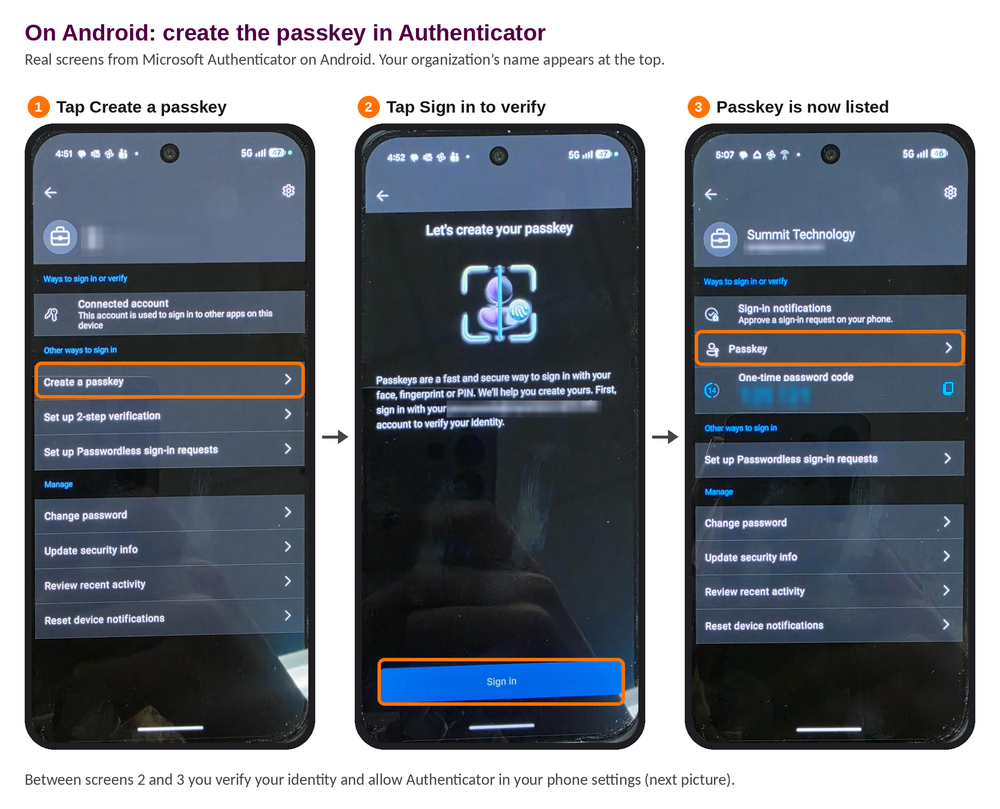
- Your work account is already listed: tap it, then tap Create a passkey.
- Verify it's you. On the "Let's create your passkey" screen, tap Sign in and finish with your password and your current verification method.
- Turn on a screen lock if asked. No Face ID, fingerprint, or PIN on your phone yet? Authenticator sends you to set one up.
- Let Authenticator save passkeys. When Authenticator asks, tap Settings, and your phone's settings open:
- On iPhone with iOS 18, go to Settings > General > AutoFill & Passwords. Turn on AutoFill Passwords and Passkeys, and under AutoFill From, turn on Authenticator.
- On iPhone with iOS 17, go to Settings > Passwords > Password Options. Turn on AutoFill Passwords and Passkeys and Authenticator.
- On Android, look for Passwords & passkeys (on some phones, Passwords & accounts). Under Additional services or Additional providers, turn on Microsoft Authenticator. Menus vary by phone maker; searching your settings for "passkey" finds it fast.
- Finish in Authenticator. Switch back to the app and tap Done.
- Confirm it worked. Tap your work account. Passkey now shows in the list of ways you sign in, and Create a passkey is gone.
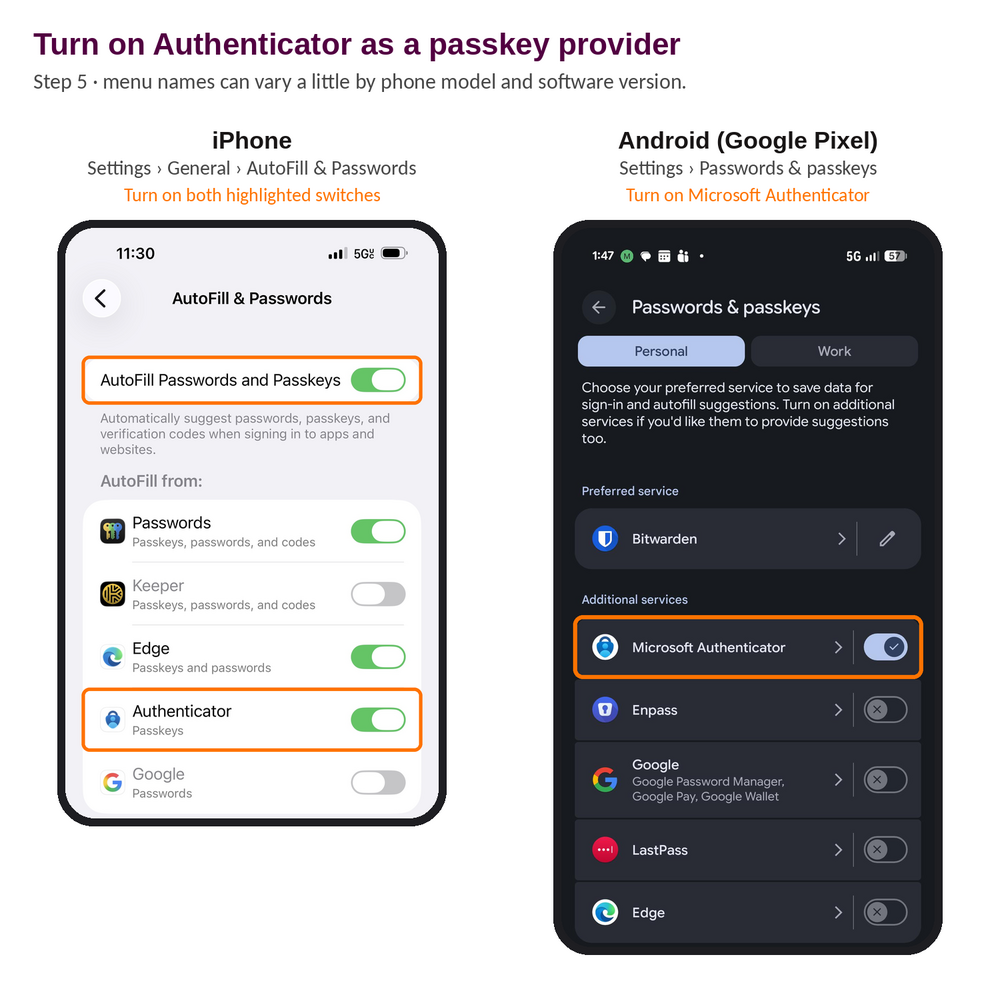
Step 5 trips up more people than any other. If that Authenticator switch stays off, the passkey has nowhere to live and setup fails without much of an explanation. Sound familiar? Go back and check that switch first.
Or start from your computer
Prefer a big screen? You can start in a web browser and finish on your phone. Same passkey, same result.
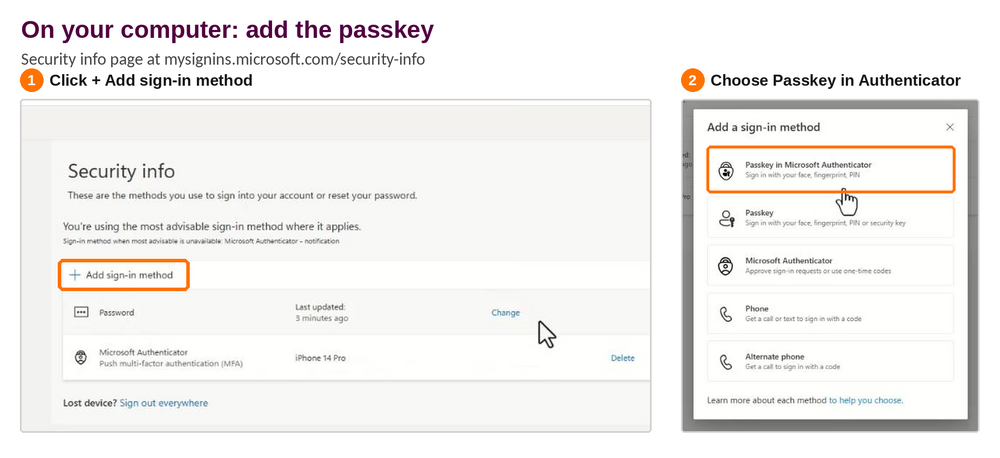
- On your computer, go to mysignins.microsoft.com/security-info and sign in the way you normally do.
- Click + Add sign-in method.
- Choose Passkey in Microsoft Authenticator, then click Next. Verify again if asked.
- Don't have Authenticator yet? The page shows a QR code to download it. Scan it with your phone's camera, install the app, then click Next.
- On your phone, open Authenticator and follow steps 2 through 6 above.
- Back on the computer, click Next. The page checks that your passkey exists.
- Click Done. Your passkey now shows on the Security info page, labeled Passkey (Device-bound).
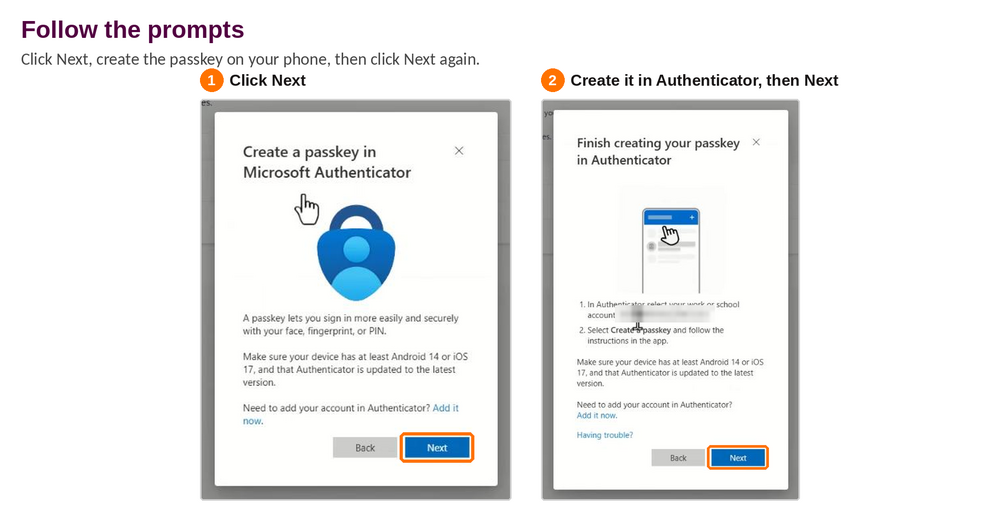
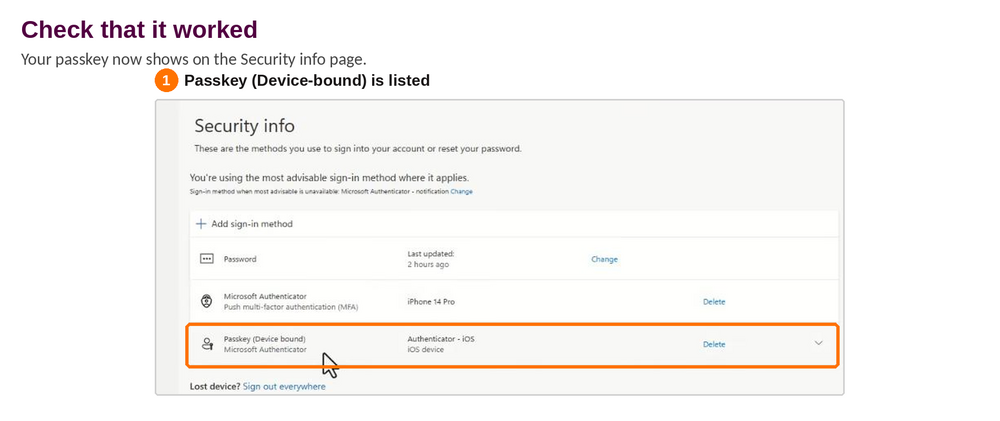
If the page shows a QR code and asks you to scan it to create the passkey, turn on Bluetooth on both your phone and computer, and scan it with your phone's regular camera app. On iPhone, Authenticator's own scanner can't read this kind of code.
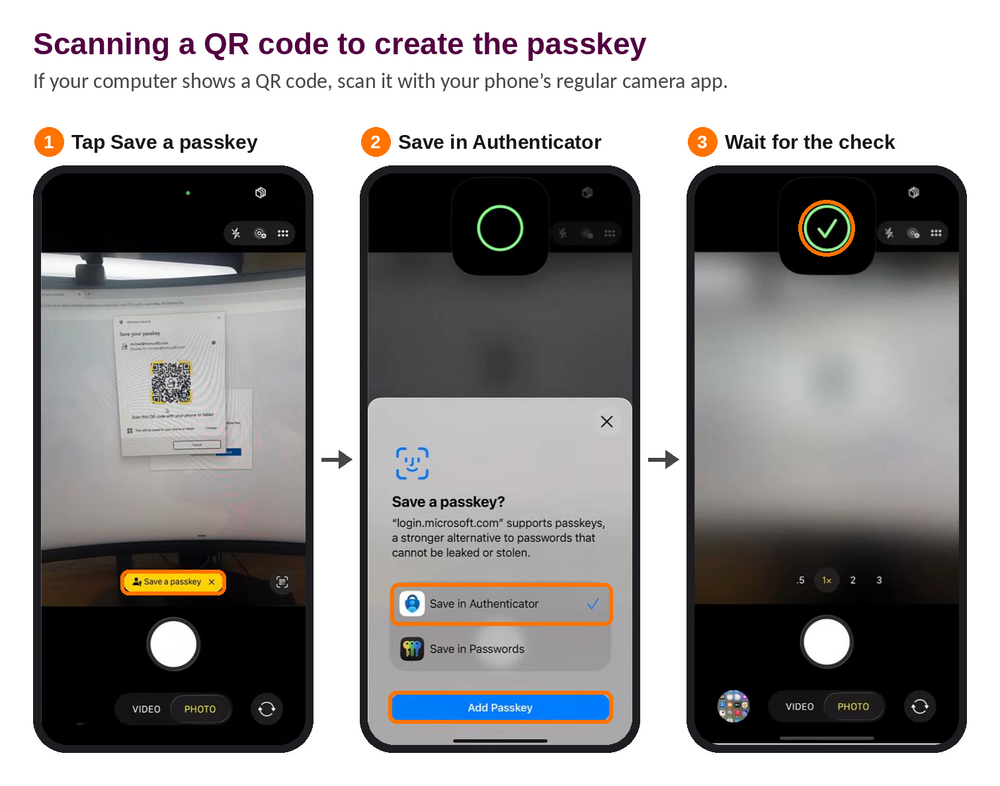
Sign in with your passkey
Try it right after setup, while everything's fresh.
On a computer, using your phone as the key
- Turn on Bluetooth on both devices and make sure both are online.
- Go to office.com (or any Microsoft 365 sign-in page) and enter your work email.
- Choose Face, fingerprint, PIN or security key. Don't see it? Click Other ways to sign in or Sign-in options first.
- On Windows 11, choose iPhone, iPad, or Android device. A QR code appears. (Macs and other browsers word this prompt their own way.)
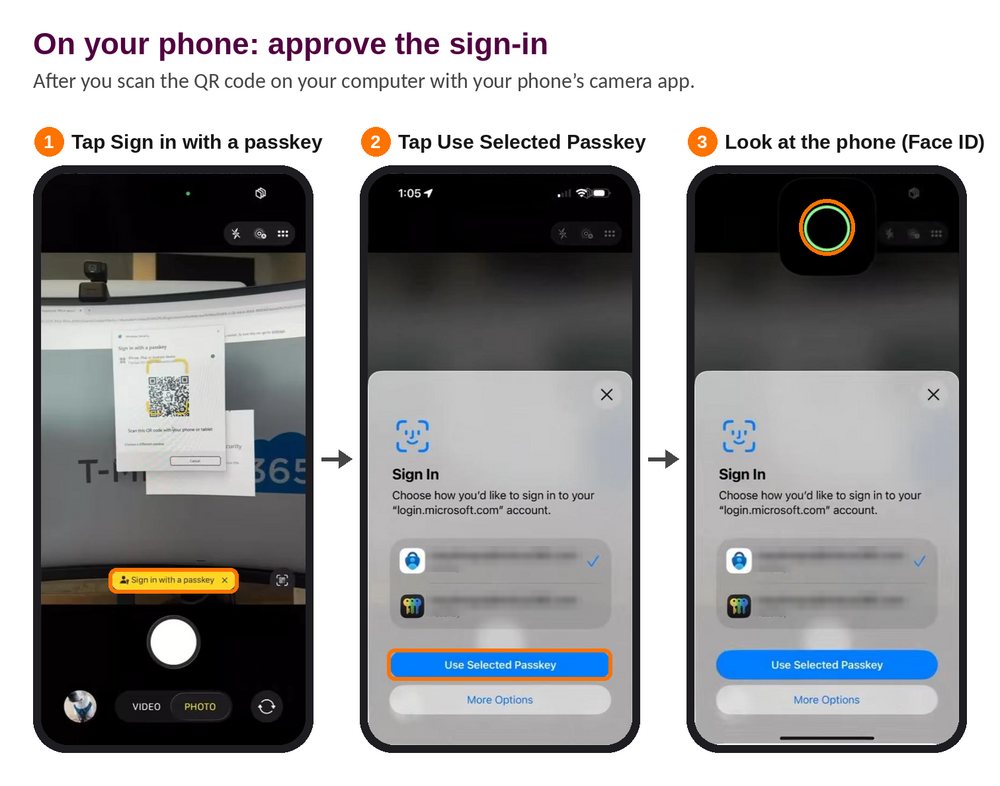
- Point your phone's regular camera app at the QR code.
- Tap Sign in with a passkey, pick your work account, and unlock with your face, fingerprint, or PIN.
Your computer finishes signing in a few seconds later.
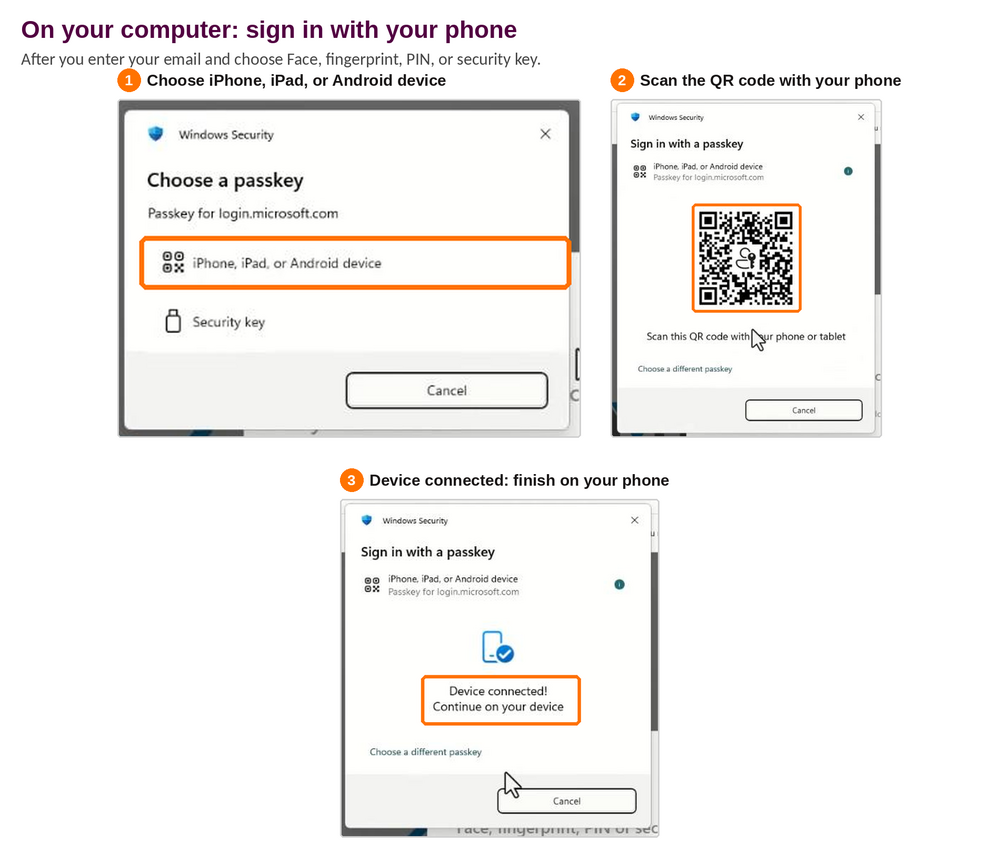
On your phone
Open Outlook, Teams, OneDrive, or a browser, and enter your work email. Choose Face, fingerprint, PIN or security key (tap Sign-in options first if you need to). Your phone shows your saved passkey. Tap it, unlock, and you're signed in without a password or a code.
When something goes sideways
Most setups go fine on the first try. When one doesn't, it's usually one of these.
| What you see | What to do |
|---|---|
| No Create a passkey or Passkey in Microsoft Authenticator option | Update Authenticator. Still missing? Your organization hasn't turned passkeys on yet, so call your IT team. |
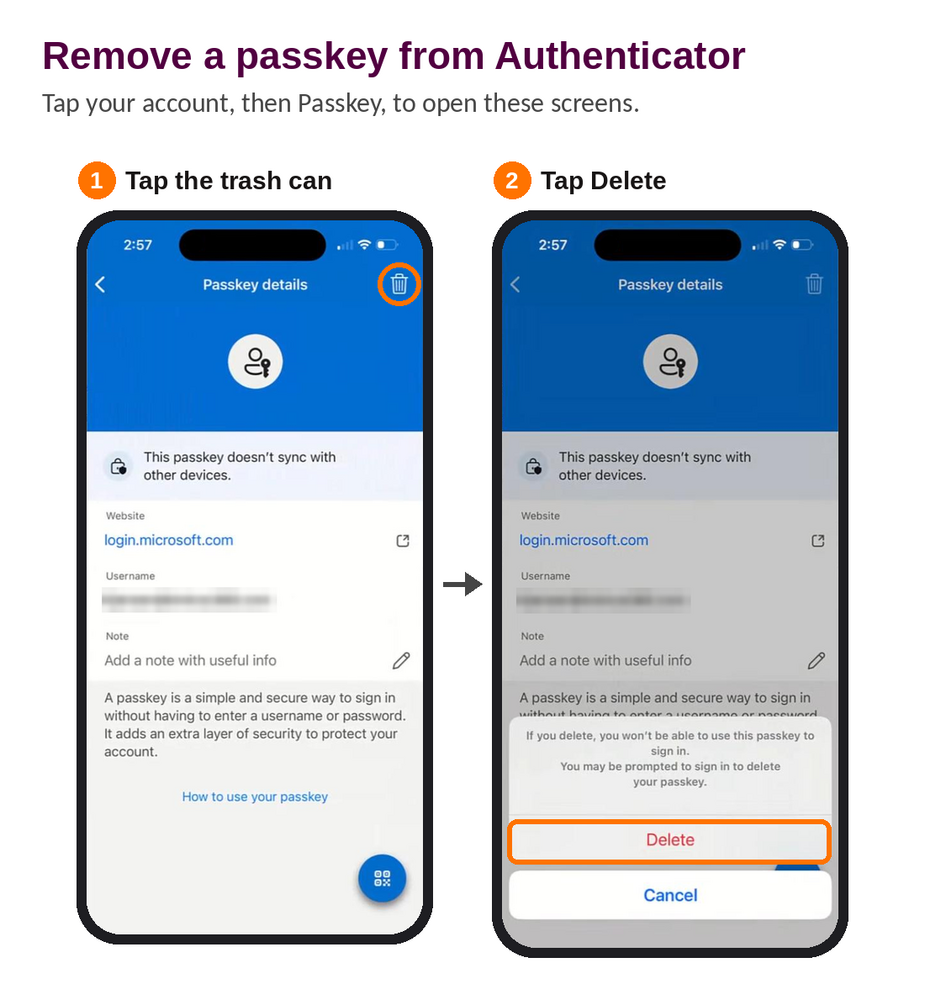
| An error that the passkey already exists | Setup saved a passkey on your phone but didn't finish. In Authenticator, tap your account, open the passkey, tap the trash can, tap Delete, and start again. |
| Scanning the QR code does nothing | Turn Bluetooth on for both devices, check that both are online, and use your phone's regular camera app. |
| Authenticator isn't listed as a passkey option in your phone settings | Update your phone software (iOS 17 or Android 14 at minimum) and Authenticator, then repeat step 5. |
| Setup keeps failing in the app | On the Security info page, click Having trouble?, choose create your passkey a different way, pick your phone type, and follow the prompts. |
Two more worth knowing. If your Android phone has separate Personal and Work profiles, a passkey only works in the profile where you created it, so set it up in the one you use for work. And Firefox on Android doesn't support these passkeys, so use Chrome or Edge there.
If you get a new phone or lose yours
A passkey in Authenticator is what Microsoft calls device-bound: it stays on the phone that made it and doesn't come along when you move Authenticator to a new phone. That's a feature. It's also why the new-phone routine is short and specific:
- Keep the old phone until the new one works.
- Set up Authenticator on the new phone and create a new passkey there.
- Test a sign-in with it.
- Remove the old passkey from Security info.
Lost your phone? Call your IT team right away. They can remove the old passkey and give you a temporary way back in.
To delete a passkey yourself, tap your work account in Authenticator, open the passkey, tap the trash can, then Delete. Then check the Security info page and delete it there too if it's still listed.
Common questions
Do I still need my password? Keep it for now. Some older apps and devices still ask for one, but most Microsoft 365 sign-ins will use your passkey.
Can someone use my passkey if they take my phone? No. It only unlocks with your face, your fingerprint, or your phone's PIN.
Does Microsoft or my IT team see my face or fingerprint? No. Your biometrics never leave your phone. They only unlock the passkey stored there.
Can I use one passkey on two phones? Each phone needs its own. Repeat this guide on every phone you use for work.
What happens on February 1, 2027 if I haven't done this? If text or phone calls are your only way to verify, Microsoft asks you to register a passkey the next time you sign in, and you can't skip it. Ten minutes now beats ten minutes at the worst possible moment.
Ten minutes, then you're done
One app, one switch in your phone settings, one test sign-in. After that, the text-message wait is behind you for good.
If your company is a Summit customer, we're already moving teams over before Microsoft's deadline, so nobody meets that February prompt cold. Stuck on a step? Call us at 801.961.1040 and tell us which step you're on. A screenshot of the error helps us get you through it faster.
If you're not a Summit customer and want help planning this for your whole team, Summit Technology is a Microsoft Solutions Partner for Modern Work, and passkey rollouts are part of how we run managed IT for Utah businesses. Start a conversation here.
Learn more from Microsoft: Register a passkey in Microsoft Authenticator · Sign in with a passkey in Microsoft Authenticator · Passkeys by default and the retirement of SMS and voice